~/blog/from-localhost-to-production-vps-dns-docker.md
From localhost to production without tears: VPS, DNS, hosting and Docker for developers
A practical guide to taking a project to production: how to secure a VPS from scratch, set up DNS and Cloudflare, choose between shared hosting, a VPS or the cloud, and spin up your local database with Docker Compose in seconds.
- author
- Alejandro Peñaloza
- Published
- Reading
- 5 min
- Español
- Leer en español →

In this article
Writing the application is half the job. The other half starts when you have to take it off localhost and leave it running on the internet, with a domain, HTTPS, and without the first bot that wanders by getting into your server.
In this post I gather what I do myself every time I set up a project: how to leave a VPS secure from scratch, how to understand DNS once and for all, when each type of hosting makes sense, and how I use Docker to avoid cluttering my machine with databases.
Setting up a VPS from scratch
The examples are for Ubuntu Server 24.04, but they apply almost unchanged to Debian.
1. First login and a non-privileged user
The first thing is to stop using root for everyday work.
# Logged in as root
apt update && apt upgrade -y
adduser deploy
usermod -aG sudo deploy
2. SSH keys instead of passwords
From your local machine:
ssh-keygen -t ed25519 -C "you@example.com"
ssh-copy-id deploy@SERVER_IP
Check that you can log in with the key before touching the SSH configuration.
3. Hardening SSH
Edit /etc/ssh/sshd_config (or create a file in /etc/ssh/sshd_config.d/):
PermitRootLogin no
PasswordAuthentication no
PubkeyAuthentication yes
Important: before restarting the service, keep another SSH session open and make sure you have alternative access (for example, your provider's web console). If something ends up misconfigured, that open session is what saves you.
sudo sshd -t            # validate the syntax
sudo systemctl restart ssh
Open a new terminal and confirm you can log in. Only then close the old session.
4. Firewall with UFW
sudo ufw default deny incoming
sudo ufw default allow outgoing
sudo ufw allow OpenSSH
sudo ufw allow 80/tcp
sudo ufw allow 443/tcp
sudo ufw enable
sudo ufw status verbose
Watch out: if you use Docker, ports published with -p can bypass UFW because Docker writes its own iptables rules. The simplest fix is to publish containers only on 127.0.0.1 and let Nginx be the single way in:
ports:
  - "127.0.0.1:3000:3000"
5. Fail2ban and automatic updates
sudo apt install fail2ban unattended-upgrades -y
sudo dpkg-reconfigure --priority=low unattended-upgrades
Fail2ban blocks IPs that repeatedly fail to log in; unattended-upgrades applies security patches on its own.
6. Nginx as a reverse proxy
sudo apt install nginx -yFile /etc/nginx/sites-available/miapp:
server {
    listen 80;
    server_name miapp.cl www.miapp.cl;

    location / {
        proxy_pass http://127.0.0.1:3000;
        proxy_http_version 1.1;
        proxy_set_header Host $host;
        proxy_set_header X-Real-IP $remote_addr;
        proxy_set_header X-Forwarded-For $proxy_add_x_forwarded_for;
        proxy_set_header X-Forwarded-Proto $scheme;
        proxy_set_header Upgrade $http_upgrade;
        proxy_set_header Connection "upgrade";
    }
}sudo ln -s /etc/nginx/sites-available/miapp /etc/nginx/sites-enabled/
sudo nginx -t && sudo systemctl reload nginx7. Free HTTPS with Let's Encrypt
sudo apt install certbot python3-certbot-nginx -y
sudo certbot --nginx -d miapp.cl -d www.miapp.cl
sudo certbot renew --dry-run
Certbot modifies the Nginx block, adds the HTTP-to-HTTPS redirect and sets up a timer that renews the certificate before it expires.
Quick checklist
- Non-privileged user with
sudo - SSH key login only,
rootdisabled - UFW active with 22, 80 and 443
- Containers exposed only on
127.0.0.1 - Fail2ban and automatic updates
- Nginx + SSL certificate with tested renewal
Domains and DNS explained for devs
Buying the domain is easy. What's confusing is which record to add and where.
The records you'll actually use
| Record | What it's for | Example |
|---|---|---|
| A | Points a name to an IPv4 address | miapp.cl → 203.0.113.10 |
| AAAA | The same, for IPv6 | miapp.cl → 2001:db8::10 |
| CNAME | One name is an alias of another name | www → miapp.cl |
| MX | Servers that receive email | miapp.cl → mx1.proveedor.com |
| TXT | Free text: verification, SPF, DKIM, DMARC | v=spf1 include:... ~all |
| CAA | Which authorities may issue certificates | 0 issue "letsencrypt.org" |
Two rules that save hours:
- A CNAME can't coexist with other records for the same name. That's why the root domain (
miapp.cl) usually uses an A record, not a CNAME. Cloudflare solves this with CNAME flattening. - TTL rules. If you're going to migrate servers, lower the TTL to 300 seconds a day before; that way the change propagates in minutes instead of hours.
.cl domains and delegating to Cloudflare
At NIC Chile you buy the domain and, in the DNS servers section, replace the default ones with the two nameservers Cloudflare assigns you when you add the site. From then on, all records are managed in Cloudflare.
To check that everything propagated:
dig miapp.cl NS +short
dig miapp.cl A +short
dig www.miapp.cl CNAME +short
Getting the most out of Cloudflare
- Proxy (orange cloud): hides the server's real IP and enables caching and protection. For non-web records (email, SSH) leave it grey.
- "Full (strict)" SSL mode: encrypts the browser–Cloudflare leg and also the Cloudflare–server leg, validating your Let's Encrypt certificate. Avoid "Flexible" mode, which leaves the leg to the server unencrypted and often causes redirect loops.
- Cache rules: aggressively cache
/assets/*,/_next/static/*or/build/*, and bypass the cache for/api/*and/admin/*. - Basic protection: the free plan already includes DDoS mitigation. Add WAF rules to rate-limit attempts on
/loginand a challenge for countries or ASNs you never get legitimate traffic from. - Cloudflare Tunnel: lets you publish a service running at home or on a network without a public IP, without opening ports on the router.
cloudflared tunnel login
cloudflared tunnel create homelab
cloudflared tunnel route dns homelab app.miapp.cl
cloudflared tunnel run homelab
Shared hosting vs. VPS vs. cloud
There's no "best hosting"; there's the right one for your budget, your traffic and the time you have to manage it.
| Shared hosting | VPS | Managed cloud (PaaS / serverless) | |
|---|---|---|---|
| Typical cost | Very low and fixed | Low to medium, fixed | Free to start, grows with usage |
| Control | Minimal (cPanel, PHP) | Full (root) | Medium: you control the code, not the server |
| Maintenance | Done by the provider | Done by you | Almost none |
| Scaling | Limited | Manual (upgrade the plan) | Automatic |
| Ideal for | WordPress, simple sites | APIs, multiple projects, Docker | Frontends, traffic spikes, teams without DevOps |
How I decide:
- Informational site or a small client's WordPress: shared hosting. Paying for a VPS for that is paying to manage something you don't need.
- Several personal projects, APIs, databases and workers: a VPS with Docker. For a fixed monthly cost you run many services and spending is predictable.
- A Next.js frontend or a product with highly variable traffic: a managed platform. You pay more per unit, but you don't waste time on servers.
- Serious traffic and availability requirements: cloud (AWS, GCP, Azure, HuaweiCloud) with load balancers, replicas and object storage.
One detail almost nobody compares: data transfer out costs (egress). A VPS usually includes a generous monthly allowance; traditional cloud charges per GB and it can be the most expensive line on the bill. Always check the provider's current pricing before deciding, because it changes often.
Docker for everyday work: your local database in 30 seconds
Installing PostgreSQL, MySQL and Redis directly on your system works until you need two different versions for two projects. With Docker Compose, each project brings its own environment.
docker-compose.yml:
services:
  postgres:
    image: postgres:16-alpine
    container_name: dev-postgres
    restart: unless-stopped
    environment:
      POSTGRES_USER: dev
      POSTGRES_PASSWORD: dev
      POSTGRES_DB: app
    ports:
      - "127.0.0.1:5432:5432"
    volumes:
      - pgdata:/var/lib/postgresql/data
      - ./docker/init:/docker-entrypoint-initdb.d
    healthcheck:
      test: ["CMD-SHELL", "pg_isready -U dev -d app"]
      interval: 5s
      retries: 10

  redis:
    image: redis:7-alpine
    ports:
      - "127.0.0.1:6379:6379"

  adminer:
    image: adminer
    ports:
      - "127.0.0.1:8080:8080"
    depends_on:
      postgres:
        condition: service_healthy

volumes:
  pgdata:
Commands I use every day:
docker compose up -d              # start everything
docker compose ps                 # check status
docker compose logs -f postgres   # follow logs
docker compose exec postgres psql -U dev -d app
docker compose down               # stop (data stays in the volume)
docker compose down -v            # stop and delete data: start from scratch
Good practices:
- Put any
.sqlfile in./docker/init/and it will run only the first time the volume is created. Ideal for schemas and test data. - Expose ports on
127.0.0.1so the database isn't reachable from your network. - Move credentials to a
.envfile and add it to.gitignore. - Pin versions (
postgres:16-alpine, notlatest) so the whole team runs exactly the same engine.
Conclusion
Taking a project to production doesn't have to be an afternoon of suffering. With a security checklist for the VPS, a clear understanding of DNS records, the right type of hosting and Docker for your local environment, you go from localhost to a domain with HTTPS in a morning, with the peace of mind of knowing what you did and why.
Comments
No comments yet. Want to leave the first one?
Leave a comment
$ ls ~/blog | grep related
Keep reading

War log: debugging CORS, refactoring my own code and integrating Webpay without losing the afternoon
Real problems and how I solved them: a CORS error that only failed in production, a memory leak on the server, my own year-old code refactored without shame, and a practical guide to integrating Webpay Plus, Mercado Pago and Flow.

Developer productivity: VS Code, advanced Git, agile project management and automation scripts
My daily workflow as a developer: the VS Code extensions and settings that actually help, Git beyond commit and push (rebase, cherry-pick and bisect), how to manage small projects without bureaucracy, and the scripts that automate the repetitive work.
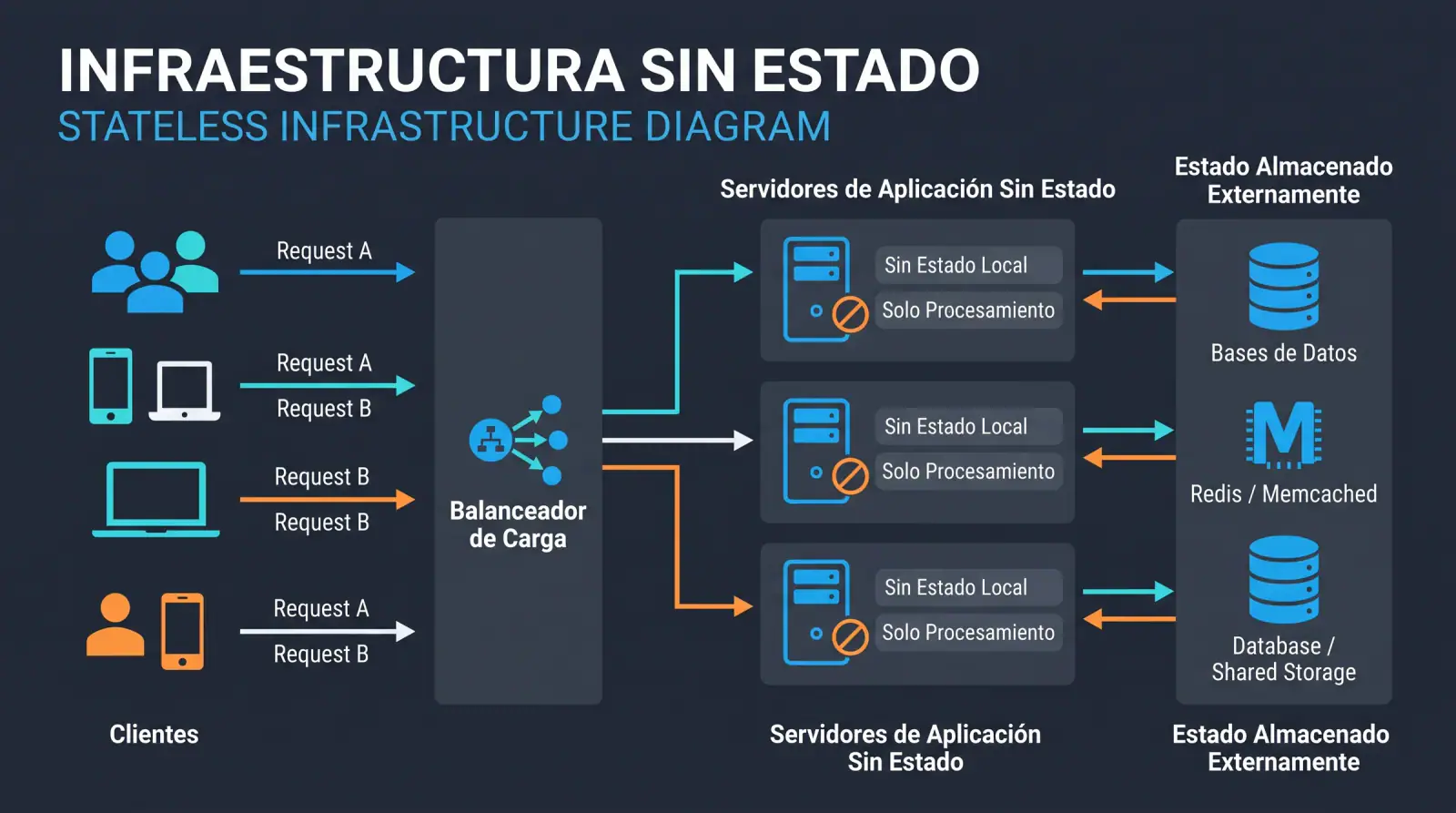
Stateless infrastructure: the foundation for scaling applications painlessly
Why designing applications without server-side state is key to scaling horizontally, deploying without downtime and recovering from failures, and how to do it right without falling into common mistakes.